

Getting the Moors App on Your Phone: Android APK and iPhone Shortcut
People who search for the Moors app usually want one thing: a way to put Moors on the home screen of their phone and get to their bets in a tap. This page covers exactly that and nothing more, from where the install file comes from to what happens when you open the app for the first time. Android users install a real APK file. iPhone users get a shortcut to the site instead of a separate program. The whole job takes a few minutes, and the account you already have works straight away. If you are still deciding whether Moors suits you, start with the main overview.
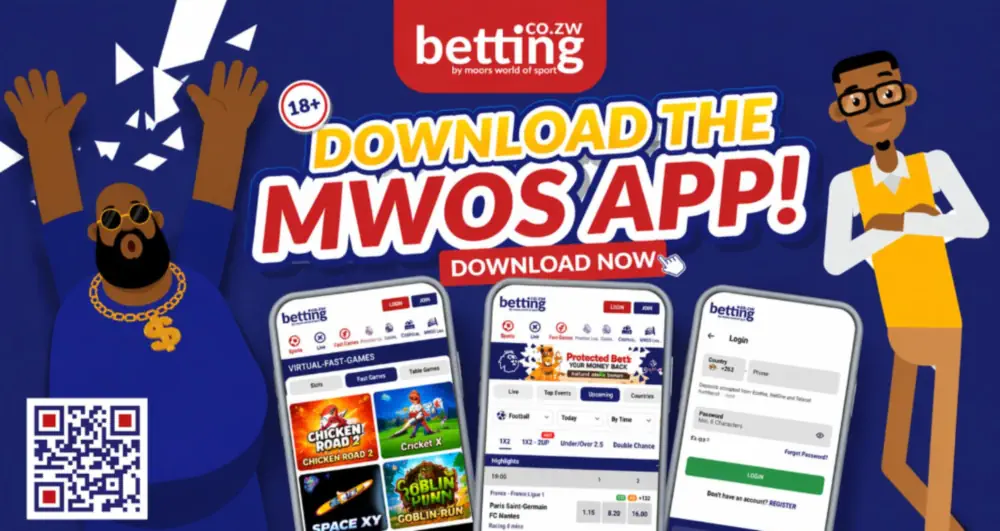
Where the Download Comes From
Moors builds its app for direct distribution, so the file is taken from the official Moor’s World of Sport website and not from a store listing. On Android the file arrives as an APK, and the phone will ask you to approve installs from unknown sources before it lets you open it.
Apple does not allow APK files at all, so iPhone owners take another route. The mobile link on the official site adds a shortcut that opens the website like an app, which saves typing the address or hunting through search results every time.
One small thing before you tap download: make sure the connection is steady. A download that gets cut halfway leaves a broken file behind, and that is the usual reason an install later refuses to start.
What Your Phone Needs
The requirements are modest. Android 7.0 or newer covers the large majority of handsets in use, and the app does not take much room once it is in place.
Here is the short list to check:
- Roughly 50–100MB of free space for a first install
- Android 7.0 or later, or a current iOS version
- A working internet connection while the file downloads and the app loads its first data
On an older handset with little memory, live casino tables and in-play sports pages may feel heavier than on a newer phone. That is worth knowing in advance, though it should not stop anyone from trying.
Clearing Room When Storage Is Full
A full phone is the most common reason an install stalls. Wiping the browser cache, deleting apps you no longer open, or moving photos and videos to cloud storage normally frees more than enough.
Restart the phone after you tidy up, because some devices only release the space once they reboot. With room available, the “not enough storage” message that interrupts so many installs should disappear and the Moors app can finish setting up.
Opening the App for the First Time
The first screen you see is a login form, not a sign-up page. If you already hold an account, whether it was opened on the site or at a shop counter, nothing needs to be repeated. The app accepts the same details.
To sign in, type the phone number you registered with and then your password. There is no special app-only profile. Your account is tied to the National Identification Number and phone number you gave when you joined, and the app simply reads the same record.
Someone who has no account yet taps “Join” and fills in a phone number, name, date of birth, currency and NIN. Only after that does the login become usable. Once you are in, open today’s fixtures to see which matches are listed.
When the Install Does Not Go Through
Failed installs tend to come down to three things: a permission that is switched off, too little space, or an Android version that is too old. On Android, the setting called “unknown sources” or “unknown applications” is the one to look at first, and turning it on for your browser or file manager fixes most cases.
A leftover from an earlier attempt can also get in the way. If a half-finished copy of the file is still sitting on the phone, delete it and then download the file again from the start.
If the installation completes but the app will not open, restart the phone. Background processes sometimes clash with a fresh install, and a reboot clears them.
Should the app keep closing on you, the cause is more often the device than the software. Look for an update to the app, since an older build can be the thing that misbehaves.